
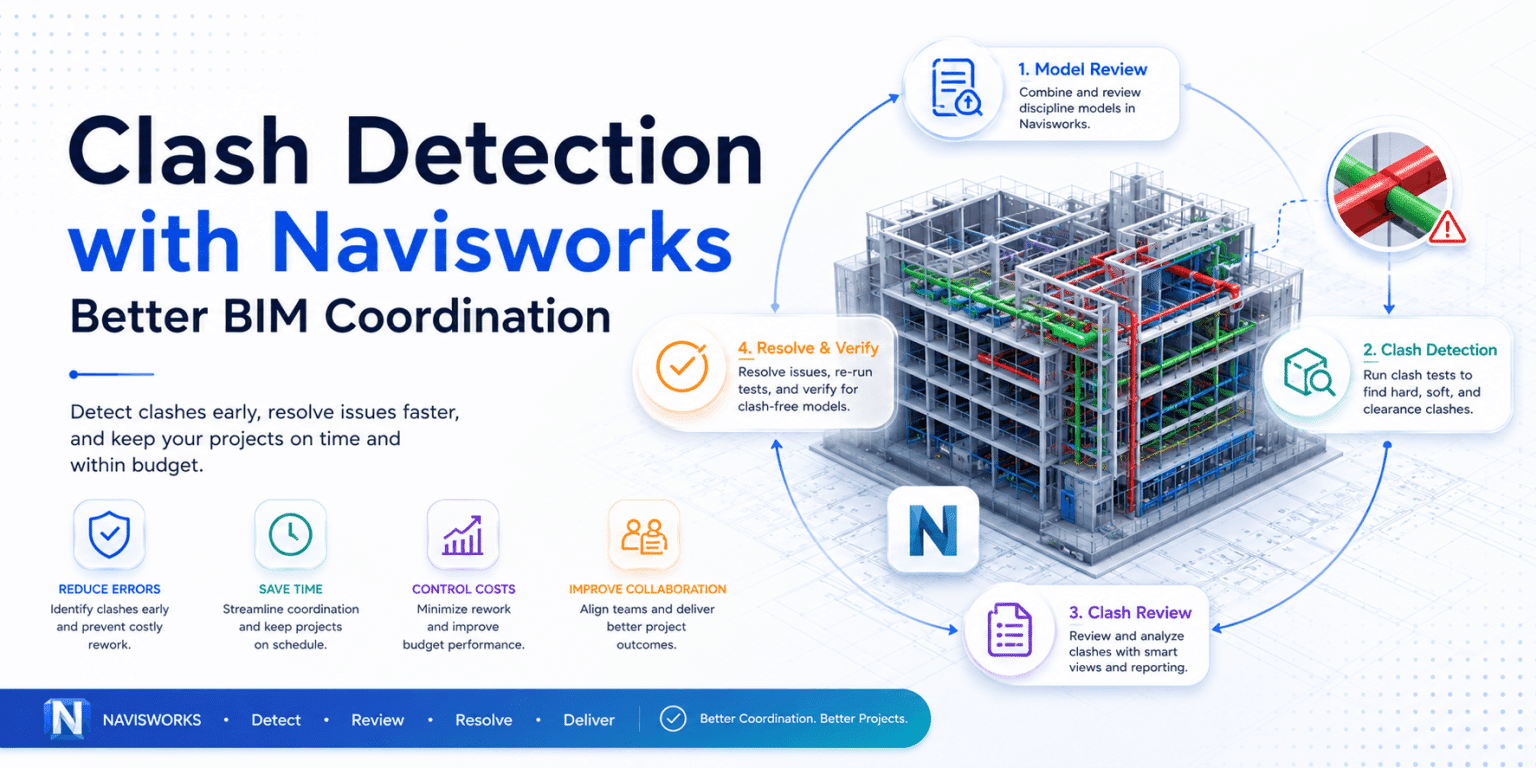
One of the things that surprised me early in my work with clash detection Navisworks BIM was how many errors make it through the design phase undetected — not because anyone was careless, but because architecture, structure, and MEP teams are often working in parallel, in separate models, with different software. By the time those models come together, there are conflicts. And if those conflicts aren’t caught before construction starts, they become very expensive to fix on site.
Clash detection Navisworks BIM is how I address this. It’s not a perfect solution — no tool is — but when used properly, it’s one of the most practical ways to catch coordination errors before they become RFIs, change orders, or site delays. Here’s how I actually run this process on projects.
What Navisworks Is Actually Doing
Navisworks Manage works by aggregating models from different disciplines into a single federated model. Each discipline keeps working in their own authoring tool (Revit, AutoCAD, Tekla, etc.), and Navisworks pulls all the models together for review and analysis. It doesn’t modify the source models — it just reads them.
The clash detective tool then runs tests between selected sets of objects to identify conflicts. The types of clashes it can detect fall into a few categories:
- Hard clashes — Two elements physically occupying the same space. A duct passing through a structural beam is the classic example. These are the most critical and need to be resolved before anything else.
- Clearance (soft) clashes — Elements that don’t intersect but are closer than a defined tolerance. A pipe running too close to electrical conduit, or a fan coil unit without enough clearance for maintenance access. These require judgment — not every soft clash is a real problem, but many are.
- Duplicate clashes — Identical elements modeled more than once, which can indicate import errors or coordination issues between model versions.
Each test type requires you to define which objects are being checked against which. This is where the setup matters.
How I Set Up a Clash Detection Navisworks BIM Test
Before running any tests, I make sure the models are properly prepared. A poorly structured federated model produces thousands of false positives, which wastes everyone’s time and makes the real issues harder to find.
Step 1: Organize models and check coordinate alignment. All discipline models need to share the same origin point and coordinate system. A misaligned model is immediately obvious when you aggregate it — elements will appear far off from where they should be. I check this first before doing anything else.
Step 2: Create Selection Sets. Rather than running a test on entire models, I use Selection Sets to isolate specific discipline categories: structural framing, MEP ductwork, piping, cable trays, walls, slabs. This gives much more granular control over which tests to run and helps keep results manageable. I use the Search Sets function in Navisworks to filter by element category, level, or property value.
Step 3: Build a clash matrix. A clash matrix is a simple grid that defines which disciplines should be tested against which others. Not every combination makes sense. For a typical building project, my matrix usually includes:
- Structural vs. Architectural (walls, slabs, stairs)
- Structural vs. MEP (ductwork, pipes, cable trays)
- MEP vs. MEP (duct vs. pipe, duct vs. cable tray)
- Architectural vs. MEP (ceilings, partitions vs. services)
I don’t run structural vs. structural tests unless I’m specifically checking for element duplication. And I set the tolerance appropriately for each test — a 50mm clearance requirement between a sprinkler pipe and electrical conduit is very different from a 0mm tolerance (hard clash) between a beam and a duct.
Step 4: Run the tests and review results. Navisworks will return a list of clashes with status, location, and a 3D view of each one. The first run on a new project almost always returns hundreds of results. The goal isn’t zero clashes immediately — it’s to triage what actually matters.
Sorting Out the Real Problems from the Noise
This is the part that takes experience. Not every clash flagged by the clash detection Navisworks BIM workflow is a real coordination issue.
Common false positives I regularly filter out:
- Structural connections and bolts that are modeled in detail — they’ll clash with everything nearby by design
- Elements on different floors that appear to overlap in the model because of the way levels are set up
- Grout and void fills that are modeled as solids
- Insulation modeled separately from pipes (clearance clashes with the host pipe itself)
I handle these by assigning clash rules in Navisworks to filter known false positive patterns, and by grouping results. Grouping by location (by zone, by floor, by discipline) makes it much easier to distribute clash reports to the right people.
I use the status workflow in Clash Detective to track progress: New → Active → Reviewed → Approved → Resolved. This keeps coordination meetings focused on what still needs decisions rather than re-reviewing things that are already being handled.
What I Export and Share
After the review session, I export clash reports as HTML or PDF for distribution. The report includes screenshots of each clash in 3D view, the element IDs of the conflicting objects, the clash type, and the current status.
For ongoing coordination across disciplines, I prefer to share the NWD file directly (the packaged Navisworks model) so other team members can review in Navisworks Freedom, which is free. This lets structural and MEP engineers see exactly where the problem is in context, rather than trying to interpret a 2D clash report screenshot.
On projects using a CDE (Common Data Environment) aligned with ISO 19650, clash reports become formal coordination deliverables with version control and response tracking. On smaller projects, an Excel tracker linked to clash report screenshots works fine.
The Honest Limitations
Clash detection is useful, but it has real limits worth knowing:
- It’s only as good as the models. If the MEP engineer hasn’t modeled the insulation, hangers, or access panels, Navisworks won’t detect those clashes. Garbage in, garbage out applies very directly here.
- It doesn’t replace coordination meetings. A clash report tells you where the problem is. It doesn’t decide whose design changes or what the solution is. That still requires engineers talking to each other.
- Running it too late is common. The value of clash detection drops sharply if it’s only done once, late in the design phase. Running iterative checks as models develop is much more effective than a single big clash detection session before construction documentation is issued.
- Model quality issues slow everything down. I’ve spent more time on projects dealing with models that have incorrect level settings, duplicate elements, or missing coordinate data than actually resolving real design conflicts. Getting model quality right from the start saves significant coordination time.
When It Works, It Really Works
The clearest return on investment from clash detection Navisworks BIM comes on MEP-heavy projects — hospitals, laboratories, technical facilities — where the density of services running through ceiling voids is genuinely complex. On these projects, catching a duct routing conflict or a sprinkler main that passes through a structural transfer beam in the model saves days or weeks of on-site remediation.
On simpler residential or office projects, the value is more modest but still real. Even catching a few hard clashes between the structural frame and MEP primary runs before construction begins avoids the kind of on-site problem that generates an RFI, a delay, and a contractor invoice for extra work.
I run clash detection as a standard part of coordination on every project where the models support it. The setup cost in time is low relative to what it finds. And finding problems virtually, before anyone picks up a tool on site, is always cheaper than finding them during construction. If you’re curious about how this fits into the broader BIM coordination workflow, see my post on BIM model coordination.

 English
 Swedish